Here are the most important things to remember if your iPhone 13 encounters water:
Key Takeaways
- The iPhone 13 water damage indicator (LCI) turns red when exposed to liquid, which can affect warranty coverage.
- Look for signs like screen discoloration, unresponsive touch, distorted sound, or the phone not turning on.
- Immediately power off your iPhone 13, remove the case and SIM tray, and gently dry the exterior.
- Never use heat, shake the phone, or put it in rice; these methods can cause more harm.
- Allow at least 48 hours for drying, and consider professional repair if issues continue.
Understanding the iPhone 13 Water Damage Indicator
So, your iPhone 13 took an unexpected dip. It happens. Before you panic, let’s talk about a tiny but important component: the Liquid Contact Indicator, or LCI. This little guy is your first clue about whether moisture has gotten inside your phone.
What the Liquid Contact Indicator (LCI) Signifies
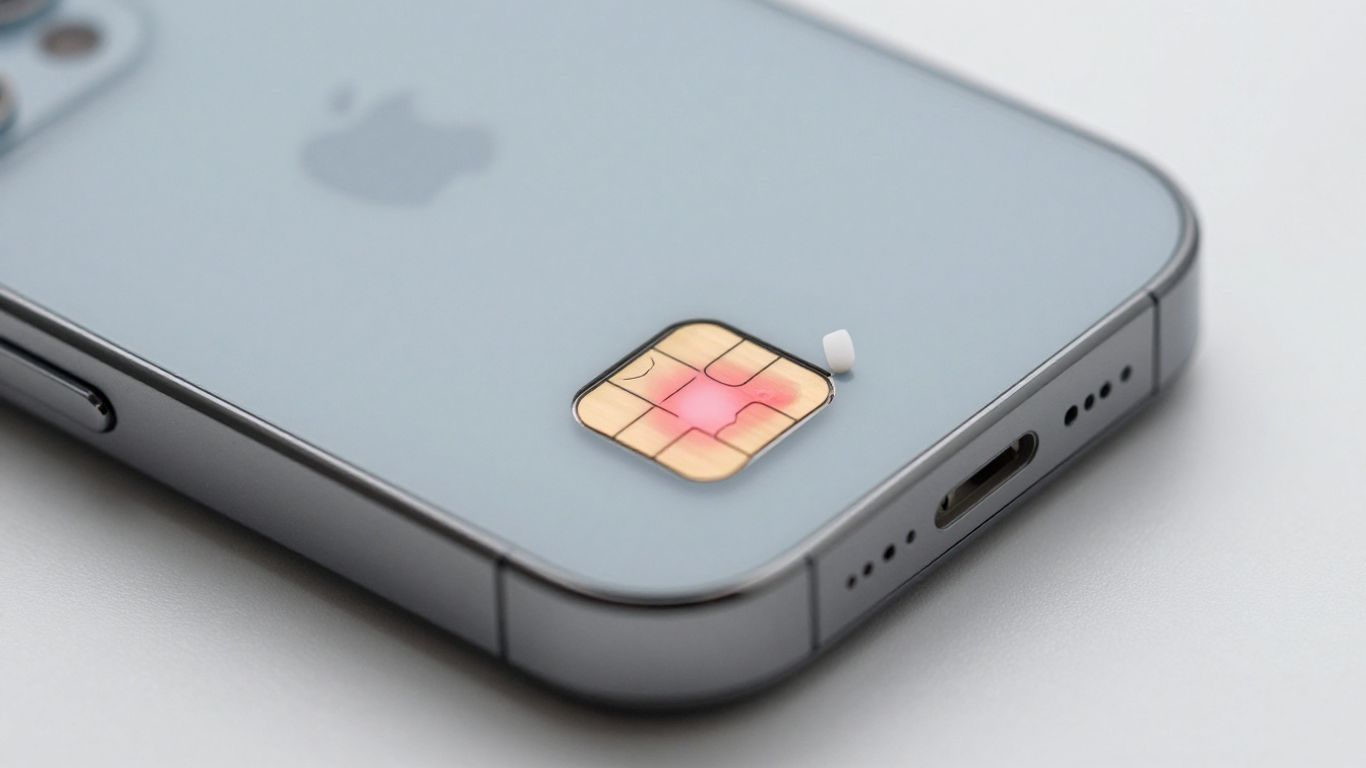
Think of the LCI as a tiny, built-in moisture alarm. It’s a small sticker, usually found inside the SIM card tray slot or near the charging port. Its primary job is to change color when it comes into contact with any liquid that contains water. This isn’t just for full submersion; even a splash or heavy condensation can trigger it. When it’s dry, it’s typically white or silver. If it turns red, it’s a clear signal that your iPhone has been exposed to liquid.
LCI Color Changes and Their Meaning
The color change is pretty straightforward, but it’s worth knowing exactly what you’re looking for:
- White or Silver: This is the ‘all clear’ color. If your LCI is still white or silver, it means it hasn’t detected any liquid contact. This is good news!
- Bright Red: This is the ‘alert’ color. If the LCI has turned fully red, it’s confirmed that liquid has made contact with the indicator. This doesn’t automatically mean your phone is ruined, but it’s a definite sign of exposure.
It’s important to note that normal humidity and temperature fluctuations within the device’s operating range shouldn’t trigger the LCI. It’s designed to react specifically to liquid.
How LCIs Trigger from Various Liquids
While we often think of dropping a phone in water, the LCI can be triggered by a surprising range of liquids. It’s not just about fresh water. Here’s a quick rundown:
- Plain Water: Obvious, but still worth mentioning – sinks, toilets, puddles, rain.
- Salty or Chlorinated Water: Think swimming pools or the ocean. These can be particularly corrosive.
- Sugary Drinks: Coffee, tea, soda, juice. The sugars can leave residue that causes problems.
- Sweat: Prolonged exposure to heavy sweat, especially during intense workouts, can sometimes be enough.
- Steam: Bathrooms, saunas, or even very steamy kitchens can introduce moisture.
- Cleaning Sprays: Accidental sprays can get into ports and cause issues.
Even though the iPhone 13 series has good water resistance ratings, these LCIs are still there to indicate if the seals have been compromised or if the phone has been exposed to liquids beyond its intended protection. If your LCI is red, Apple might deny a standard warranty claim, so it’s a key piece of information.
Remember, water resistance isn’t the same as being waterproof. Seals can degrade over time, and certain liquids can be more damaging than others, even if they don’t fully submerge the phone.
Recognizing Signs of Water Exposure on Your iPhone 13
So, your iPhone 13 took an unexpected dip, huh? It happens to the best of us. Even though these phones are pretty tough and can handle a bit of splash, they aren’t exactly waterproof. Real-world accidents, like a sudden downpour or a clumsy moment near the sink, can still cause trouble. The trick is knowing what to look for so you can act fast. Catching the signs early is your best bet for saving your device.
Visual Clues of Internal Moisture
Sometimes, the damage isn’t obvious at first glance. You might not see a puddle of water, but moisture can still get inside. Keep an eye out for these visual cues:
- Condensation under the screen: This looks like weird smudges or cloudy spots that you can’t wipe away. It’s moisture trapped between the layers of your display. It’s a pretty clear sign that water has made its way inside.
- Foggy or blurry camera lens: If your photos suddenly look hazy, like you’re shooting through a steamy window, water might have gotten into the camera module. This can affect picture quality.
- Water marks or stains on the display: Similar to condensation, but sometimes these appear as darker patches or streaks within the screen itself. It’s a dead giveaway that liquid has reached the display components.
- Corrosion inside the charging port or SIM tray: Look closely at the charging port and where your SIM card goes. If you see any greenish, whitish, or rusty residue, that’s corrosion from liquid exposure. This is a more serious sign, especially if it’s been there a while.
Audio and Touchscreen Malfunctions
Water can mess with the delicate electronics inside your iPhone, leading to some pretty annoying issues with how you interact with it:
- Distorted or muffled sound: If your speakers suddenly sound crackly, weak, or just plain weird, moisture might be trapped in the speaker grill or affecting the internal components. Calls might become hard to hear, or music might sound off.
- Touchscreen not responding correctly: This is a big one. You might notice delayed responses when you tap or swipe, or maybe the screen registers touches that you didn’t even make (ghost touches). Sometimes, specific areas of the screen might stop working altogether.
- Buttons acting up: The volume buttons, power button, or even the mute switch might become unresponsive or sticky. Water can interfere with the mechanisms and circuits that make them work.
- Strange noises: If you hear a faint swishing or rattling sound when you move your phone, it means there’s still liquid trapped inside the body. It’s like hearing water sloshing around, which is never a good sign.
Performance Issues and Unexpected Behavior
Beyond the obvious visual and audio problems, water damage can cause your iPhone 13 to act in ways you wouldn’t expect:
- Sudden shutdowns: Your phone might just turn off without warning, even if the battery is charged. This often happens when moisture reaches the logic board and causes short circuits.
- Boot loop problems: This is when your iPhone gets stuck in a restart cycle, showing the Apple logo over and over but never actually loading up to the home screen. It’s a sign that critical software or hardware components are being affected by moisture.
- Face ID or Touch ID stops working: The sensors used for facial recognition or fingerprint scanning are super sensitive. Water exposure can easily damage them, making your phone unable to recognize you.
- The phone won’t turn on at all: This is the most drastic sign. If your iPhone is completely dead and won’t power on after being exposed to liquid, it’s likely suffered significant internal damage. You might need to check the Liquid Contact Indicator to see if it was triggered.
It’s important to remember that even if your iPhone 13 is rated for water resistance, it doesn’t mean it’s completely immune to liquid damage. Things like saltwater, steam, or even prolonged exposure to rain can still cause problems. The seals can degrade over time, and pressure from submersion can force water past them. So, always be cautious, even with a water-resistant device.
Immediate Actions After Your iPhone 13 Gets Wet
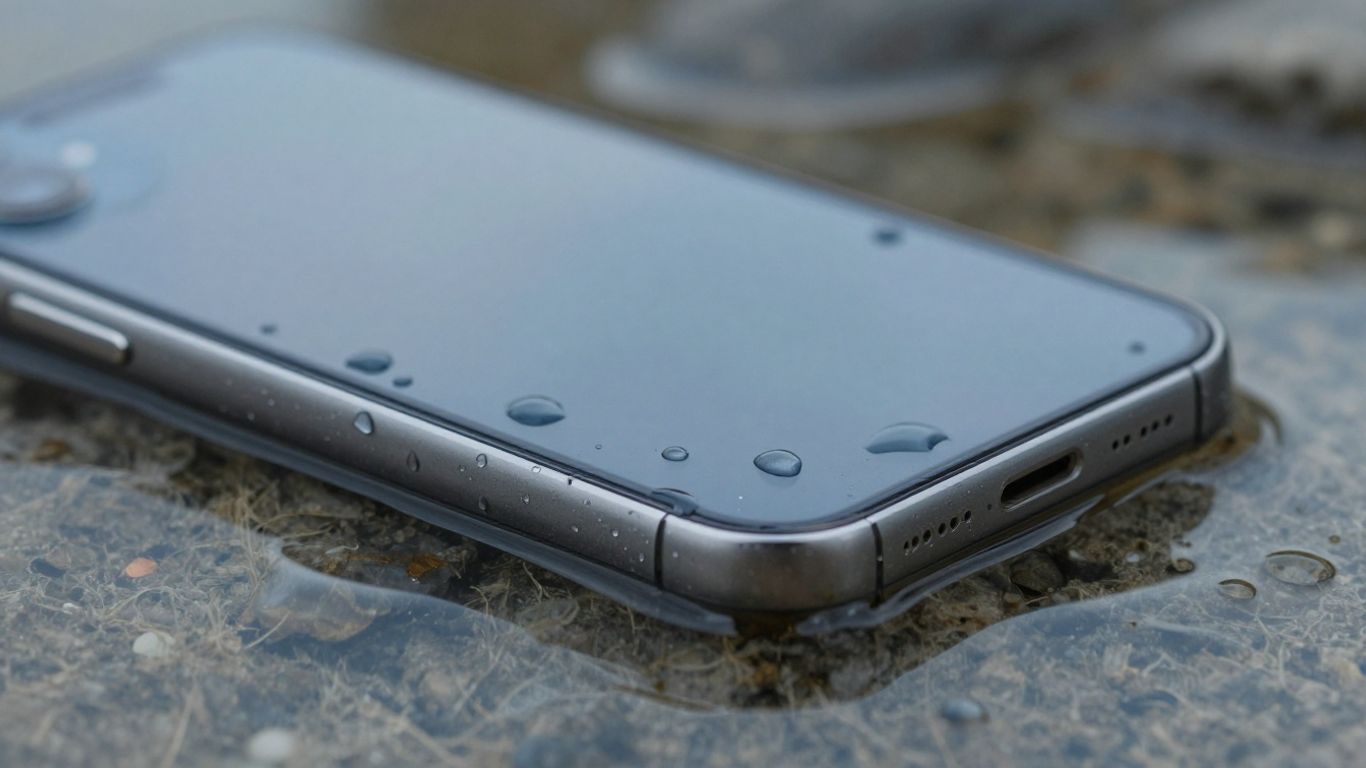
Okay, so your iPhone 13 took an unexpected bath. Don’t panic, but do act fast. The very first thing you need to do, and I can’t stress this enough, is to power it down immediately. Seriously, don’t even think about checking if it still works. Leaving it on while wet is like giving it a one-way ticket to short-circuit city, and that’s a one-way trip to permanent damage.
Next, get rid of anything that might be trapping moisture. Take off the case – those things are like little sponges. If you can, pop out the SIM card tray too. This opens up another little avenue for water to escape. Then, grab a soft, absorbent cloth, like a microfiber one, and gently wipe down the exterior of your phone. Just get rid of any visible water. Don’t go crazy scrubbing or anything.
Here’s a quick rundown of what to do right away:
- Power Off Instantly: This is non-negotiable. Stop all electrical activity.
- Remove Case and SIM Tray: Give water a way out and stop it from being held against the phone’s body.
- Gentle Exterior Drying: Use a soft cloth to remove surface moisture.
Trying to dry your phone by shaking it vigorously or using heat, like a hairdryer, is a really bad idea. You’ll just push water further inside and potentially damage delicate components. Patience is key here.
After the initial wipe-down, the best thing you can do is just let it be. Find a dry, well-ventilated spot and leave your iPhone 13 to air dry. We’ll talk more about how long you should wait in the next section, but for now, resist the urge to plug it in or turn it on. If you’re looking for more detailed steps on what to do after an accident, check out what to do if your iPhone is wet.
Common Mistakes to Avoid with a Wet iPhone 13
So, your iPhone 13 took an unexpected dip. Bummer. Now, before you go Googling ‘quick fixes,’ let’s talk about what not to do. Because honestly, some of the most common ‘solutions’ out there can actually make things way worse, turning a potentially fixable situation into a paperweight.
Why Heat and Shaking Are Detrimental
First off, resist the urge to blast your phone with a hairdryer or stick it in the oven. Heat is the enemy of delicate electronics. It can warp components, melt adhesives, and generally wreak havoc inside your iPhone. Think of it like trying to dry a delicate piece of fabric with a blowtorch – not a good idea. Similarly, shaking your phone vigorously might seem like it’ll dislodge water, but it just sloshes the liquid around, potentially spreading it to more sensitive areas. It’s like trying to bail out a sinking boat by rocking it.
The Ineffectiveness and Risks of Using Rice
Ah, the old rice trick. You’ve probably heard it a million times: bury your wet phone in a bowl of uncooked rice. While rice does absorb moisture, it’s not very effective for electronics. It’s slow, and frankly, it doesn’t get into all the nooks and crannies where water likes to hide. Worse yet, tiny grains of rice dust can get into your ports and speakers, causing their own set of problems. It’s better to just let it air dry. If you’re looking for something to help absorb moisture, silica gel packets are a much better option, but even then, patience is key.
The Danger of Attempting to Charge a Wet Device
This is probably the biggest no-no. Never, ever try to plug in or charge your iPhone if you suspect it has been exposed to liquid. Electricity and water are a terrible combination. Doing this can cause a short circuit, frying the internal components and leading to permanent damage. It’s like trying to start a car with a flooded engine – you’re just asking for trouble. Wait until you’re absolutely sure the phone is dry, and even then, proceed with caution. If the Liquid Contact Indicator (LCI) has turned red, it’s a clear sign of liquid exposure, and Apple might deny warranty coverage if you try to claim damage.
Trying to fix a water-damaged iPhone yourself without the right knowledge and tools is often a recipe for disaster. While you might be tempted to open it up or clean it, these actions can introduce more problems or cause further damage to sensitive internal parts. Professional repair shops have specialized equipment and techniques to handle liquid damage safely and effectively, which can be more cost-effective in the long run than attempting a DIY fix that fails.
Here’s a quick rundown of what to avoid:
- Heat sources: Hairdryers, ovens, radiators, direct sunlight.
- Physical agitation: Shaking, dropping, or hitting the phone.
- Unproven methods: Burying in rice, using compressed air aggressively.
- Powering on or charging: Until you are certain it’s completely dry.
- Disassembly: Unless you’re a trained technician with the right tools.
Drying and Testing Your iPhone 13 Post-Exposure
Okay, so your iPhone 13 took an unexpected dip. What now? The most important thing is patience. You’ve got to let it dry out completely before even thinking about powering it back on. Trying to rush this step is where most people mess up and cause more damage.
Recommended Drying Period
After you’ve powered it down immediately and removed any external accessories like cases or the SIM tray, it’s time for the waiting game. A minimum of 48 hours is generally recommended, but honestly, longer is always better. Think of it like letting a wet shirt air dry – the longer it hangs, the more sure you are it’s dry all the way through. You can place your iPhone in a dry, well-ventilated spot. Some people like to use silica gel packets (those little things you find in shoe boxes) to help absorb moisture, but don’t go overboard. Just place a few around the phone, not stuffed inside any ports.
Assessing Readiness for Power-On
So, how do you know if it’s actually dry? It’s not just about feeling the outside. You’ll want to check a few things:
- Visual Inspection: Look closely at the charging port and SIM tray. Do you see any lingering moisture or corrosion? A magnifying glass can be helpful here.
- Condensation Check: Hold the phone up to the light. Is there any fogging or condensation visible under the screen? This is a bad sign, meaning moisture is still trapped inside.
- LCI Status: Remember that Liquid Contact Indicator (LCI)? If it’s still bright red, it’s a clear signal that liquid has been inside. You can usually find this inside the SIM card slot. If it’s white or silver, that’s a good sign, but not a guarantee.
- Overall Feel: Does the phone feel completely dry and normal, or does it still have a slightly damp or cool feel to it?
Trying to power on a device that still has internal moisture is like playing with fire. The electricity can short-circuit components, turning a potentially fixable problem into a permanent one. It’s better to wait an extra day or two than risk frying your iPhone.
Signs Your iPhone 13 May Be Safe to Use
If you’ve waited the appropriate amount of time and your visual checks look good, you can try powering it on. Here’s what to look for:
- Successful Boot-Up: The Apple logo appears, and the phone boots up normally without any strange noises or immediate shutdowns.
- Screen Responsiveness: The touchscreen works as expected. No ghost touches, no lag, and all areas of the screen respond to your touch.
- Audio and Camera Functionality: Test the speakers, microphone, and cameras. Do they sound clear? Do photos look normal, without fogging or weird spots?
- Charging Port: Try charging the phone. Does it connect and charge without any error messages or unusual heat?
Even if it seems to be working fine, keep an eye on it for the next few days. Intermittent issues can sometimes pop up later. If you notice any weird behavior, like apps crashing unexpectedly or the phone getting unusually warm, it might be a sign that some internal damage occurred. In that case, it’s probably best to seek professional help, like from an Apple Authorized Service Provider.
Apple’s Stance on Water Damage Coverage
Standard Warranty Limitations
So, you dropped your iPhone 13 in the sink, huh? Bummer. Let’s talk about what Apple’s standard warranty covers, or more importantly, what it doesn’t. Generally speaking, if your iPhone takes a swim, the standard one-year limited warranty isn’t going to help you out much. This warranty is mostly for manufacturing defects, not for accidents like liquid exposure. It’s a bit of a bummer, but that’s how it is. They’re pretty clear that liquid damage isn’t part of the deal. You can check out the specifics of what’s covered on Apple’s warranty page.
AppleCare+ Coverage Details
Now, if you opted for AppleCare+, things get a little more interesting. AppleCare+ is their extended service plan that includes accidental damage protection. This means liquid damage is typically covered under AppleCare+. However, it’s not a free pass. You’ll usually have to pay a service fee or deductible, and there might be limits on how many accidental damage claims you can make. It’s definitely a better safety net than the standard warranty, but it’s still important to know the exact terms and fees involved before you need it. It’s designed to give you some peace of mind against those unexpected spills and drops.
The Impact of a Red LCI on Claims
Remember that little Liquid Contact Indicator (LCI) we talked about? The one that turns red when it gets wet? Well, that little guy can really mess with your warranty or AppleCare+ claim. If Apple sees that the LCI is red, they’ll often automatically deny any claim made under the standard warranty. Even with AppleCare+, a red LCI can complicate things, though it’s usually still covered with the service fee. It’s basically Apple’s way of having a clear indicator that the phone has indeed been exposed to liquid, which is usually excluded from standard coverage. So, if your LCI is red, be prepared for a potentially tougher conversation when trying to get service.
It’s important to remember that even with water-resistant phones, ‘resistant’ doesn’t mean ‘waterproof’. Things like saltwater, chlorinated pool water, or even just steam can still cause damage that the seals aren’t designed to handle.
Professional Repair Options for Water-Damaged iPhones
So, you’ve tried the drying methods, maybe even waited a few days, but your iPhone 13 is still acting up or won’t turn on. It happens. Sometimes, the damage is just too much for simple air drying to fix. That’s when it’s time to think about getting some professional help.
When DIY Drying Isn’t Enough
Look, we all want to save a buck and fix things ourselves, right? But when it comes to water damage inside a complex device like an iPhone, trying to do too much yourself can actually make things worse. You might think you’re helping by poking around, but you could easily push moisture further in or cause short circuits. If your phone isn’t showing signs of life after a good drying period, or if it’s behaving erratically, it’s probably beyond basic home remedies.
Benefits of Professional Diagnostics
Taking your phone to a repair shop means they can properly diagnose what’s going on. They have special tools and knowledge to figure out exactly which components are affected. This is way better than just guessing. For example, a place like UBreakIFix offers free diagnostics, which is a great starting point. They can tell you if it’s a simple fix or if the damage is more serious, like affecting the logic board.
Here’s what a professional check usually involves:
- Thorough Inspection: They’ll look for visible signs of corrosion and check the Liquid Contact Indicator (LCI).
- Component Testing: They’ll test individual parts like the screen, battery, cameras, and charging port to see what’s working and what isn’t.
- Logic Board Assessment: This is the brain of your phone. Professionals can often clean and repair corrosion on the logic board, which is something you definitely can’t do at home.
Trying to fix a water-damaged phone without the right equipment and knowledge is like trying to perform surgery with a butter knife. It’s just not going to end well.
Specialized Repair Processes for Water Damage
Professional repair services use specific methods designed for water-damaged electronics. This often includes:
- Professional Disassembly: Carefully taking the phone apart using the right tools to avoid further damage.
- Ultrasonic Cleaning: Using sound waves to clean corrosion and residue from the logic board and other components. This is a really effective way to remove microscopic gunk that water leaves behind.
- Component Replacement: Swapping out any parts that are beyond repair with high-quality replacements.
Some places, like Best Buy, also offer convenient repair services that can handle water damage. The key is finding a reputable service that uses proper techniques and offers some kind of warranty on their work. This way, you have some peace of mind knowing your phone is in good hands and that the repair is likely to last.
Final Thoughts: Act Fast — Your iPhone Can Be Saved
Getting your iPhone 13 wet is definitely a stressful situation, but it doesn’t always mean the end of your phone. The most important thing is to act quickly. Turning it off right away and letting it dry properly are your best bets. If you’re unsure or the problem persists, seeking professional help is a smart move. Remember, sometimes a little quick action can save your device from permanent damage.
Frequently Asked Questions
What does the iPhone 13 water damage indicator mean?
Your iPhone 13 has a tiny little strip, usually near the SIM card slot, called a Liquid Contact Indicator (LCI). If it gets wet, this strip changes from white or silver to bright red. It’s basically a sign that your phone has been exposed to liquid, which might be important if you need to get it fixed.
Is my iPhone 13 truly waterproof?
No, not really. While the iPhone 13 is water-resistant, meaning it can handle splashes or a brief dip, it’s not completely waterproof. Things like saltwater, soap, or being submerged for too long can still cause damage. It’s best to avoid getting it wet if you can.
What should I do if my iPhone 13 gets wet?
The very first thing you must do is turn it off immediately. Seriously, don’t wait. Then, take off any case it has, pop out the SIM card tray, and gently wipe the outside with a soft cloth. After that, just let it sit in a dry, open spot to air out for at least 48 hours.
Can I put my wet iPhone 13 in rice?
Please don’t. Putting your iPhone in rice is a common myth, but it doesn’t really help dry it out. Worse, little bits of rice dust can get into the phone’s ports and cause even more problems. It’s better to just let it air dry naturally.
Will Apple fix my iPhone 13 if it has water damage?
Apple’s standard warranty doesn’t cover liquid damage. If you have AppleCare+, they might help, but you’ll likely still have to pay a service fee. If the water damage indicator (LCI) is red, they’ll probably deny a regular warranty claim.
How long should I wait before turning my iPhone 13 back on?
It’s best to wait at least 48 hours, but honestly, longer is better. Give it a few days if you can. Even if it looks dry on the outside, there might still be moisture inside. Turning it on too soon could cause a short circuit and permanent damage.
